 ProcessChem
Getting Around
About
ProcessChem has four tabs along the bottom, and every calculation in them works the same way: fill in an inputs screen, tap Calculate, and read a results screen that starts with the answer. This page shows the parts every screen shares.
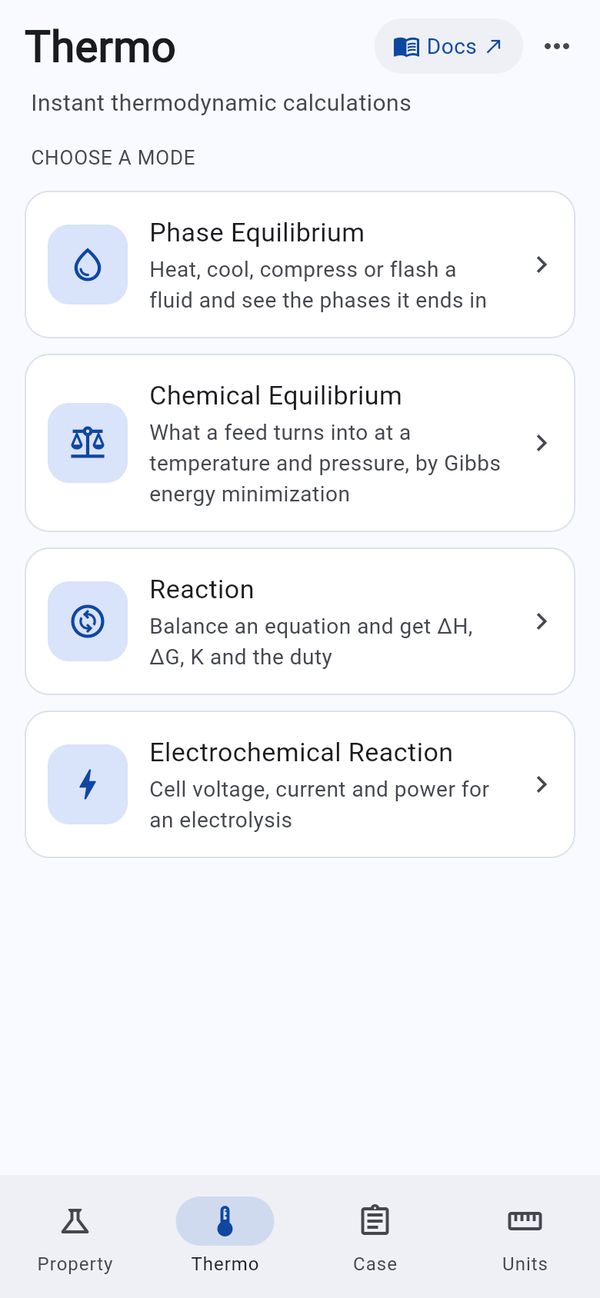
The four tabs
| Tab | Heading and subtitle | What it opens on |
|---|---|---|
| Property | Property, "Look up any chemical's properties" | The inputs: what to look up, and the conditions |
| Thermo | Thermo, "Instant thermodynamic calculations" | Choose a mode: a card for each of the four modes |
| Case | Case, "Real-world scenarios, start to finish" | All cases: a card for each of the four cases |
| Units | Units | Presets, unit search, the Unit converter and the unit groups |
On Thermo and Case, tap a card to open that mode or case. Its name becomes the heading, with a ‹ arrow before it that takes you back to the cards. Once you have calculated a case, a Continue card above All cases takes you straight back to it.
Each tab keeps what you typed while you visit the others.
The header
Every screen has the same two buttons at the top right:
- Docs ↗ opens the matching page of this documentation in your browser: the tab's page on a tab's home screen, or the mode's or case's own page once one is open.
- ⋯ opens the menu: your Recent saved sets, Open a saved set…, Save…, Reset to defaults, and Appearance, Light or Dark (remembered between launches). See Saving and opening.
The inputs screen
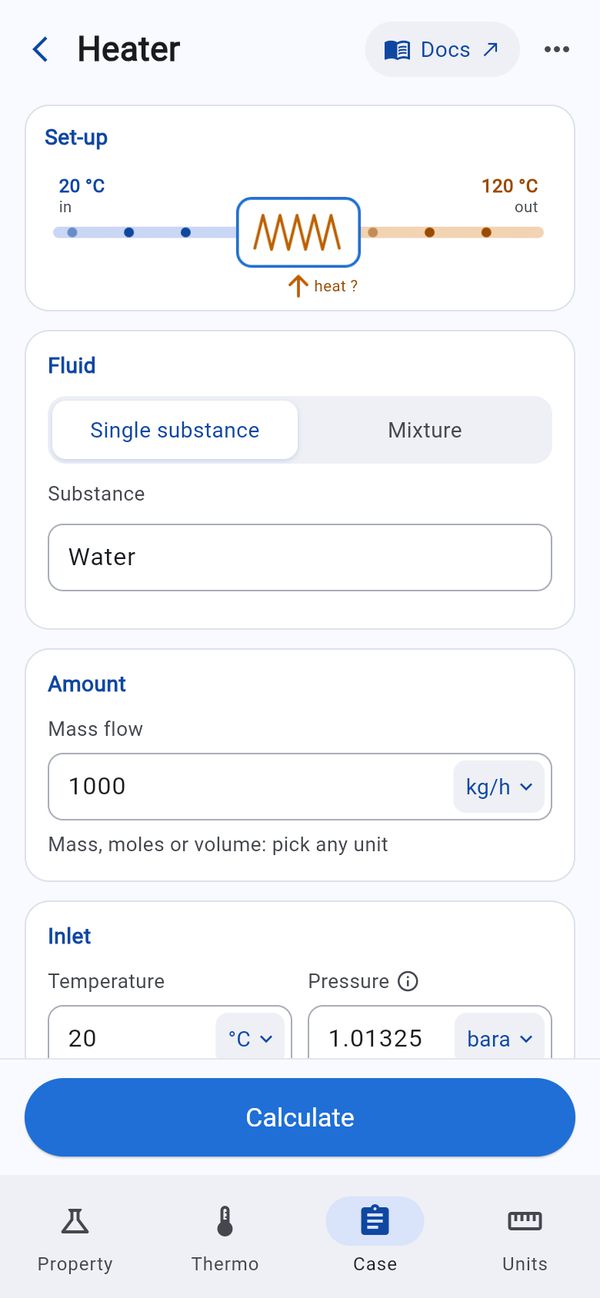
Inputs are grouped into cards, such as Fluid, Amount, Inlet and Find on the Heater. Cases also start with a Set-up picture of the equipment that follows your numbers. Some advanced groups are folded away; tap the heading to open them.
- Choices are switches or rows of chips. Single substance / Mixture picks one chemical or a blend; on the Heater, Find switches between The duty and Outlet temperature, and the fields below change to suit.
- Chemical names suggest matching chemicals as you type; tap one to fill it in.
- Numbers take digits only: letters are removed as you type.
- Units: the button inside each number field (such as °C ⌄ or kg/h ⌄) changes that field's unit. A field follows the Units tab until you change it here; from then on it keeps its own unit, and a saved set keeps it too.
- ⓘ beside a field label explains what the field means.
Calculate (Calculate properties on Property) is pinned at the bottom of the screen, so it stays in reach however far you scroll. If something is wrong with an input, the message appears on the inputs screen, above Calculate.
The results screen
Results replace the inputs on their own screen, read from top to bottom:
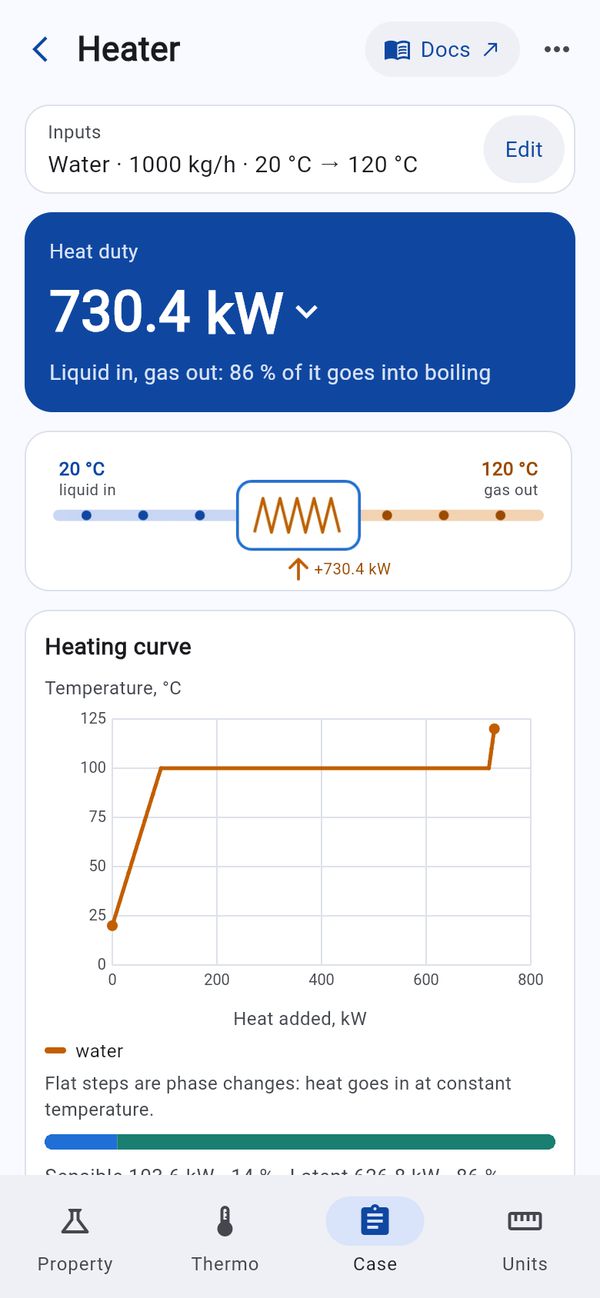
- Inputs strip: a one-line summary of what was calculated, such as "Water · 1000 kg/h · 20 °C → 120 °C". Edit takes you back to the inputs, as you left them.
- Headline card: the answer first, in large type, with a sentence saying what it means. Property opens instead with the substance's name, formula and molar mass, and a Hazards info chip.
- Tiles: the next most important values, side by side.
- Charts, where a picture helps: the heating curve on the Heater, temperature profiles on the Heat Exchanger, the operating window on the Fluidized Bed, and value against temperature on Property.
- Groups: the full results in cards, one row per value. Tap a value's unit (the blue unit with ⌄) to show that value in another unit; this changes that one value only, not the Units tab.
- ⓘ beside a value opens a sheet on where it came from. On Property it also lets you change the method behind the value. See Methods and data sources.
- Warnings appear in amber, with a ⚠ symbol, wherever a result needs care, such as a value taken outside its data's valid range.
- Notes at the foot say how the result was found, ending with "Solved with:" and the method where there is one.
- Methods used, the last row on most results, lists the methods behind the result and lets you pick another where there is a choice. See Methods and data sources.
Changing a unit on the Units tab sends every calculation showing results back to its inputs; tap Calculate for an up-to-date result. A result on screen always answers the inputs in its Inputs strip.
Tapping the tab again
Swipe back in from the left edge of the screen, as in Safari, to go back one step: from results to the inputs, then from the inputs to the cards. Start the swipe right at the edge; a sideways drag elsewhere scrolls tables and charts as usual. On Android the system back gesture or button does the same, and leaves the app only from a top screen.
Tapping the tab you are already on steps back one screen at a time. If you have scrolled down, the first tap returns to the top. After that, each tap goes back one step: from results to the inputs, then from a mode's or case's inputs to the Choose a mode or All cases cards.